
Not receiving your Binance code? Check SMS, email and Google Authenticator (2026)
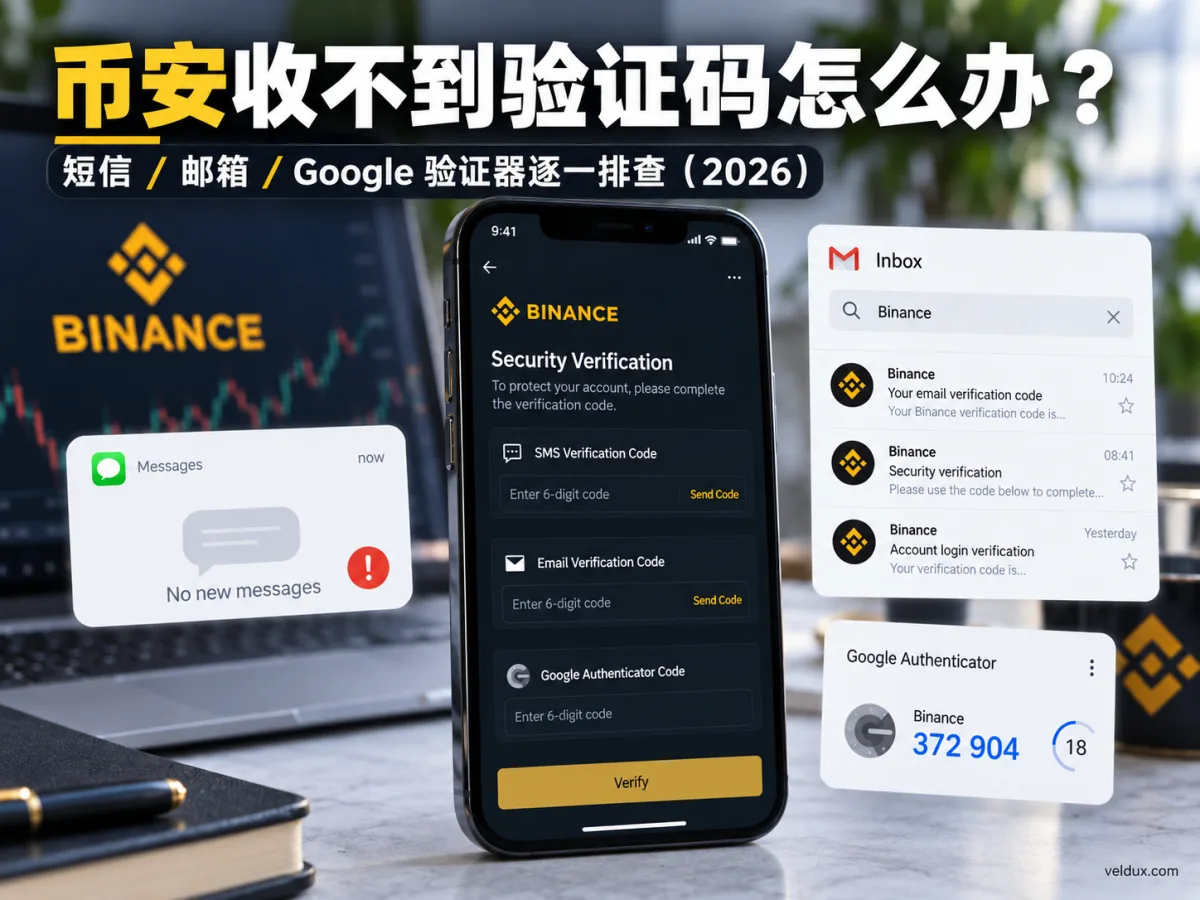
Table of contents

Binance new-user benefit
20% fee rebate
Official Binance sign-up · You must complete identity verification (KYC) to trade and withdraw
Not receiving your Binance code? First work out whether the problem is that the SMS won't arrive, that the email never shows up, or that the 6-digit Google Authenticator code is wrong — the three cases are fixed differently.
- SMS won't arrive: check the number, the country code, the signal and any message blocking.
- Email never shows up: check the spam folder, the registered address, the mailbox capacity and any filter rules.
- Google Authenticator shows an error: turn on your phone's automatic time, confirm it's the right account and re-enter the latest code.
If the code did arrive but shows "incorrect", "expired" or "too many requests", don't keep resending it — follow what the page says first.
1. Not receiving your Binance code? Start with the type of problem
A Binance code is a one-time security check that confirms your permission to act during registration, login, account recovery or a sensitive action.
The usual methods are SMS, email, Google Authenticator, and the passkeys or other two-factor tools your account already has enabled.
Compare your case with the table below to find the fix.
| Problem | First thing to fix |
|---|---|
| The SMS never arrives | Check the country code, the signal and the block list |
| The email has no code | Check spam, the registered address and the capacity |
| The Google 6-digit code shows an error | Sync the phone time and confirm the authenticator account |
| The code is expired | Request a new one and enter the latest code |
| The code failed to send | Switch networks or the login device |
| The old number is no longer active | Use another verification method or recover the account |
How do you decide? If your phone or email received nothing at all, check delivery first; if the code arrived but verification fails, check whether it's correct, expired or matches the current request; if you lost your original verification device, consider recovering the account's verification method.
Don't treat every case as a network problem.
2. Not receiving the Binance SMS code?
The Binance SMS code (SMS Verification Code) is a one-time code sent to your linked phone number. When you register, log in or change security details, the system may ask for SMS verification.
If it doesn't arrive, check in this order.
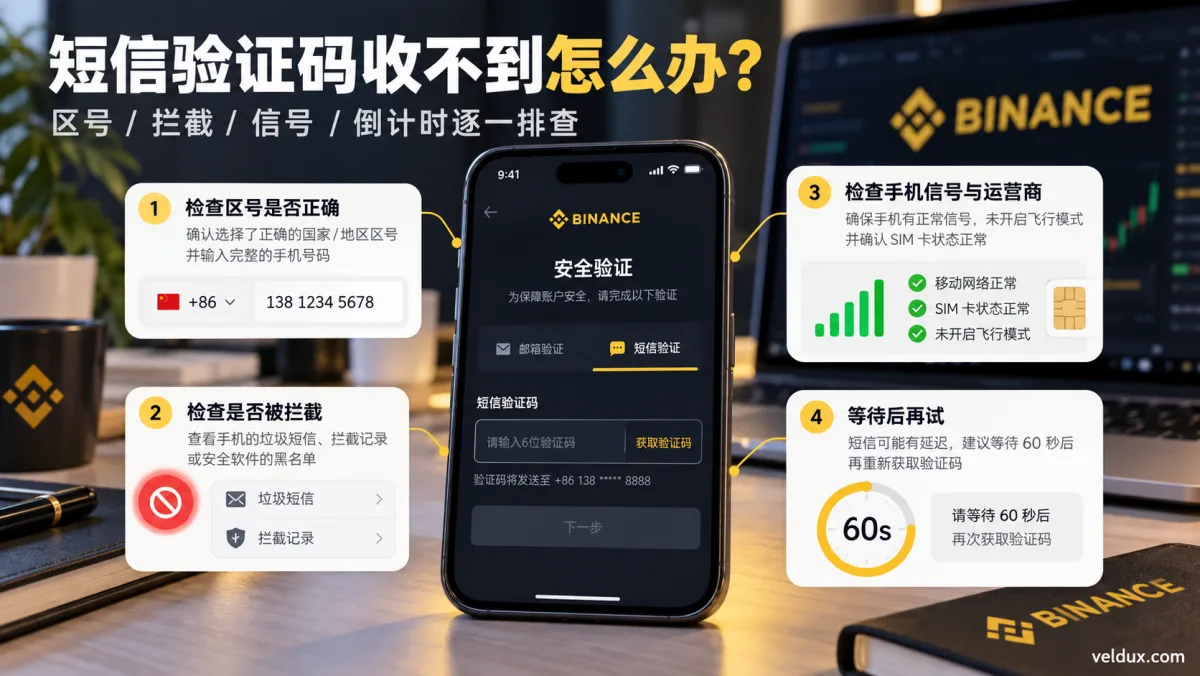
Figure 1: when the Binance SMS code doesn't arrive, first check the country code, message blocking and carrier signal, then request a new code according to the page countdown.
Step 1: confirm your number and country code
First check whether the country code shown on the Binance page is correct.
Common codes:
- United Kingdom: +44
- Australia: +61
- India: +91
- Nigeria: +234
For example, with a UK number you normally choose +44 and then enter the number.
If you pick the wrong country code, the code may not arrive even with good signal.
Note: a correct country code doesn't mean your account can use SMS verification everywhere. SMS coverage and the regions where your account can use services are different questions; go by what the current Binance page and your local rules say.
Step 2: check your signal and any SMS blocking
Confirm your line isn't suspended and can receive other SMS normally.
Then check:
- Your phone's spam-message folder.
- The block list in your security app.
- Whether you've blocked unknown numbers or the SMS sender.
- Whether your phone is in airplane mode.
- Whether a dual-SIM phone has the right SIM enabled.
If you use a Samsung, Google Pixel, iPhone, Xiaomi or another brand, check the block list in the messages app or the system security settings. The menu names differ by system.
How to decide: if you receive every other SMS and only Binance's never arrives, it may be the sending channel, carrier filtering or your Binance account's verification status.
Don't permanently switch off your phone's security protection just to receive one SMS.
Step 3: restart your phone and check messages again
Binance lists restarting your phone among the checks when the SMS doesn't arrive.[1]
After restarting, confirm the SIM connects to the carrier network, then return to the verification page and see whether it lets you resend.
A phone showing good signal doesn't guarantee every international or platform SMS will arrive. If you can't receive a certain type of SMS for a long time, ask your carrier about any filtering or receive restrictions.
Step 4: resend according to the page countdown
When the code doesn't arrive, don't tap "Get code" over and over.
Do this instead:
- After the first send, wait for the page countdown to finish.
- Check the SMS inbox and the block list.
- Confirm the number is correct, then request another code.
- Enter only the latest code — the one that matches the current request.
If you've already requested several codes in a short time, stop and wait a while before retrying.
According to Binance's official two-factor guidance, in some cases of SMS or email not received you can retry after about 10 minutes, but go by what the account page shows.
Step 5: try a voice code or another verification method
Some accounts may see a voice-code option on the verification page.
If the current page supports it, you can receive the code by phone call.
If you already have Google Authenticator, another authenticator app or a passkey, check whether it lets you switch the verification method.
When should you contact support?
If the country code is correct, the signal is normal, there's no blocking and the code still won't arrive after a while, ask for help from the official Binance site or the in-app support entry.
Don't use "SMS receiving" or "manual unlock" services offered by strangers in search results.
3. Not receiving the Binance email code?
The Binance email code is a one-time verification sent to your registered or linked email; it's used mostly for login, account recovery and security settings.
If the verification email doesn't arrive at login, check these five places first.
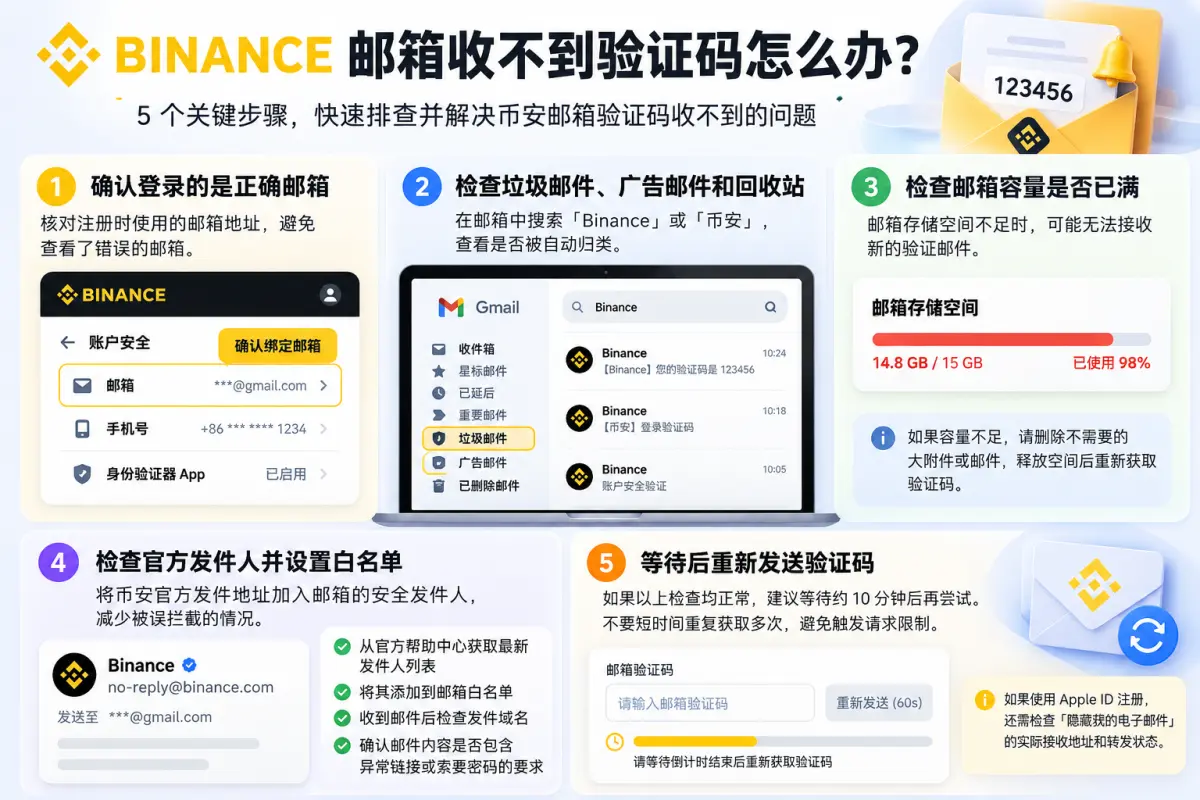
Figure 2: when the Binance email code doesn't arrive, check the linked address, the spam folder and the mailbox capacity in order, confirm the official sender, then request a new code according to the page.
Step 1: confirm you're checking the right email
A lot of people have Gmail, Outlook, Yahoo and a work or university account all open on their phone, and are actually looking at an address that isn't linked to Binance.
First check the address you used at registration.
Pay special attention to:
- Whether the email username is misspelled.
- Whether the domain is spelled correctly.
- Whether you used a work or university address.
- Whether you registered with an Apple ID.
If you can still log in to Binance, go to "Account security" to see the linked email.
Step 2: check spam, promotions and trash
Open the email search and try searching for "Binance".
Also check:
- The spam folder
- The promotions or advertising folder
- Deleted mail
- Filter rules
- The blocked-senders list
Sometimes the mail did arrive but was sorted automatically.
If you find a genuine Binance verification email, mark it as "not spam" to reduce future blocks.
Step 3: check whether your mailbox is full
This step is often skipped.
When the mailbox storage is full, it may not receive new mail. Binance's official Help Center also lists mailbox capacity among its checks.[2]
Open the mail settings and look at the remaining space.
If it's low, delete large attachments or mail you don't need, free up space and check for the code again.
Step 4: check the official sender and your allowlist
If verification emails are often blocked, you can set a safe-sender rule using the addresses Binance publishes officially.
Get the current sender list from Binance's official Help Center rather than trusting the address shown on any unknown email.
When a mail arrives, also check:
- The sender's real domain.
- Whether it contains odd links.
- Whether it asks for your password or a full code.
- Whether it matches the anti-phishing code you set.
Note: receiving an email that claims to be from Binance doesn't mean it's real. If a mail asks for your password, verification code or authenticator key, stop and check through the official app.
Step 5: wait and resend
If the registered email is correct, nothing is in spam and there's enough space, wait about 10 minutes and try again.
Don't request several codes in a short time — codes from different batches can confuse you.
Special case: you registered with an Apple ID and mail doesn't arrive
If you used an Apple ID to register on Binance and turned on "Hide My Email", the address you see on the account may not be your usual personal email.
Apple may forward mail to the receiving address configured on the Apple ID through a hidden address.
In the iPhone's Apple account settings, look for "Sign in with Apple" or "Hide my email" options and check the receiving address and forwarding status. The menus change with the iOS version.
How to decide: if you registered with an Apple ID and your usual email never shows the verification mail, confirm Apple's forwarding settings first instead of requesting codes over and over.
4. Is the 6-digit Google Authenticator code from Binance showing an error?
Google Authenticator is a time-based one-time-password tool; the usual dynamic code has 6 digits and changes about every 30 seconds.
It doesn't work like SMS or email: normally, Google Authenticator doesn't wait for Binance to send a message, but generates the dynamic code in the authenticator app.
So Google Authenticator not receiving an SMS is not itself a fault.
What you actually need to check is whether the authenticator has the matching Binance account, and whether the 6-digit code you enter passes verification.
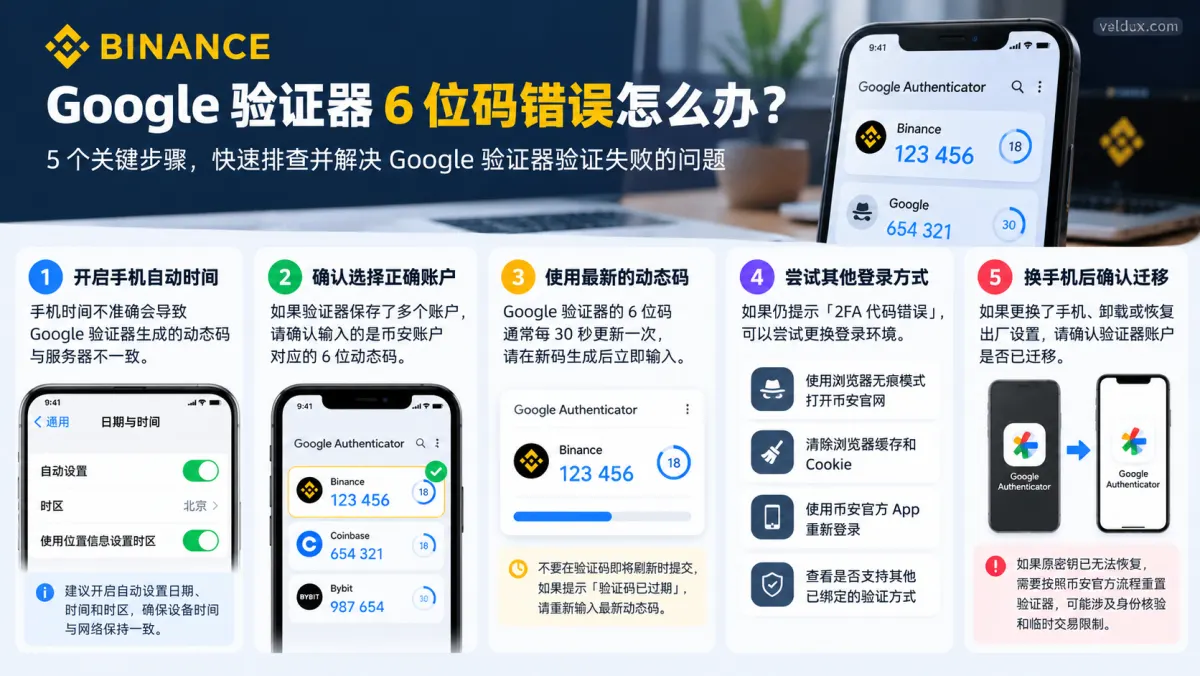
Figure 3: when the 6-digit Google Authenticator code from Binance fails, check the phone time, the account selected, the code validity, the login environment and the authenticator's migration state after changing devices — in that order.
Step 1: turn on your phone's automatic date and time
If your phone's time is inaccurate, the dynamic code from Google Authenticator may not match the time the server expects.
Android:
Open "Settings", find "Date & time" and turn on automatic date, time and time zone.
iPhone:
Open "Settings" → "General" → "Date & Time" and turn on "Set Automatically".
If you're following an old authenticator tutorial, you may not find a "time correction" menu. The new Google Authenticator mostly depends on the device's time setting.
When done, close and reopen the authenticator, wait for a new code to generate and try logging in.
Step 2: confirm you've selected the right Binance account
If Google Authenticator stores accounts for several sites, it's easy to enter the wrong code.
Check the account name in the authenticator and confirm the current 6-digit code belongs to Binance, not another exchange, email or site.
If you've linked the authenticator more than once, also check whether you're using an entry with an old key.
Step 3: wait for the latest code before entering it
Don't submit right when the code is about to change.
Wait for a fresh 6-digit code to appear, enter it immediately and submit.
If it says "code expired", enter the latest code first — don't reset 2FA right away.
Step 4: try the browser's incognito mode or the Binance app
If the phone time is correct, the code isn't expired and it still says "2FA code error", check the login environment.
Try:
- Opening Binance's official login page in incognito mode.
- Clearing the browser cache and cookies related to Binance.
- Logging in with the official Binance app.
- Checking whether the page lets you use another already-linked verification method.
This is also one of the directions Binance gives for Google Authenticator errors.[3]
Step 5: after changing phones, confirm the authenticator was migrated
If you recently changed phones, uninstalled Google Authenticator or factory-reset the device, the authenticator accounts may not have migrated completely.
First check whether the old phone can still open the original authenticator.
If the old device still works, you can complete the transfer with the migration or sync method the authenticator itself supports.
If the original key can no longer be recovered, you have to use Binance's authenticator reset process.
Important: don't unbind or reset Google Authenticator immediately just because of one code error. Changing your security verification method can trigger restrictions on fund operations.
5. The code arrived, but it says error, expired or failed to send
"Code not received" and "code error" are two different problems.
If the SMS or email already has a code but Binance won't accept it, act according to the specific message on the page.
| On-screen message | What to do |
|---|---|
| Wrong code | Check what you entered and the current request |
| Code expired | Get and enter the latest code |
| Too many requests | Stop retrying and wait for the limit to lift |
| Failed to send the code | Switch networks or devices and request again |
| We can't process your request, please try again later | Try incognito mode or retry later |
These cases aren't fixed with the same measure: if the code arrived but verification fails, check the validity and whether it matches the current request; if the send failed, check the page, network and device.
Wrong code: don't mix up an old SMS and a new one
For example, you tap "Get code" twice and your phone receives two SMS messages in a row.
Don't grab the first one for the latest verification page; use the code that matches the current request.
If you can't tell which is valid, request a fresh code once you're allowed to resend, and keep it clearly separate.
Expired code: request another, don't keep re-entering the old one
SMS and email codes usually have a validity window.
If the page clearly says the code expired, entering the same digits again usually won't work.
Resend according to the page countdown and complete verification within the window.
Send failed: tap "Get code" again
If tapping "Get code" makes the page say "failed to send the code, tap get code again", that's different from the SMS not reaching your inbox.
Try:
- Checking whether the Binance page has a normal connection.
- Switching from WiFi to mobile data, or the other way.
- Using a browser that works properly.
- Retrying in incognito mode.
- Using the official Binance app you already installed.
Switching networks mainly helps check code-request or page-communication failures; it doesn't directly solve a carrier delivery problem.
"We can't process your request": try again later
Requesting the code many times in a short period can trigger a temporary limit, and the page may show "We can't process your request, please try again later."
If the page shows a wait time, follow the time the system shows. Don't try to skip the limit by endlessly switching devices or retrying.
If the account offers other already-linked verification methods, you can switch to them as the page indicates.
6. Changed your number or phone and can't receive codes: how to recover your account
If you no longer have the original number, or you lost the device with Google Authenticator, just waiting for the code usually doesn't help.
You need to tell apart two cases: you can still log in, and you can't log in at all.
Case 1: you can still log in to Binance
If you can still get in with a passkey, email or another linked verification method, try changing the original method in the account security settings.
For example, in the Binance app:
- Open the account page.
- Open "Account security".
- Choose "Phone number" or "Authenticator app".
- Enter the matching manage or change process.
- Complete identity verification as the page asks.
- Link the new security verification method.
The menu names may change with app versions.
Before changing, confirm the new number can receive SMS and keep the authenticator's recovery information safe.
Case 2: you can't log in to Binance at all
If logging in asks for the old number or the code of an authenticator you already lost, first check whether the page offers:
- Switch to another verification method
- Can't use the current method
- Reset security verification
- Account recovery
If the page offers these options, follow the prompts.
During recovery, the platform may ask for additional identity verification. If self-service recovery fails, handle the case through Binance's official support channels.
Don't hand passwords, codes, photos of identity documents or remote control to strangers. Identity materials should only be submitted through a verified official recovery process.
Does resetting your phone number or Google Authenticator affect withdrawals?
It may.
According to Binance's updated official help (2026), after changing your phone number or Google Authenticator, withdrawals, internal transfers and P2P trading may be temporarily restricted for up to 48 hours.[4]
| Change | Possible restriction |
|---|---|
| Phone number | Withdrawals, internal transfers and P2P trading for up to 48 hours |
| Google Authenticator | Withdrawals, internal transfers and P2P trading for up to 48 hours |
The specific services paused and when they're released depend on what the account page shows; don't reset security verification just to resolve a single code-entry error.
7. FAQ
Q1: Am I not receiving the Binance SMS because my phone is broken?
Not necessarily. First check the number and country code, the carrier signal, SMS blocking and whether the line is suspended. If other SMS messages arrive and only Binance's fails, then consider the SMS channel or the account verification.
Q2: What do I do if the Binance email code never arrives?
Confirm the linked email is correct and check spam, trash and capacity. If you use Apple ID's hidden email, also check the actual forwarding address. After checking, request a new one as the page says.
Q3: How long do I wait before resending the Binance code?
Go by the page countdown. If you request too many times in a short period, a temporary limit may appear. Binance recommends waiting about 10 minutes in some cases of SMS or email not received, but not every account waits a fixed 10 minutes.
Q4: What do I do if the 6-digit Google Authenticator code keeps failing?
First turn on the phone's automatic date and time, confirm you selected the Binance account, then enter the latest code. If it still fails, try the official app, incognito mode or another verification method available on the account.
Q5: I changed phones and lost Google Authenticator — what do I do?
First check whether the old phone still keeps the authenticator account and whether you completed a valid sync or migration. If you can't recover the original key, follow Binance's official process to reset the authenticator; it may involve identity verification and temporary trading restrictions.
Q6: Does not receiving the code mean my account was blocked?
You can't conclude the account is blocked just because the code doesn't arrive. SMS filtering, mailbox capacity, device problems and rate limits can all produce the same effect.
If the page clearly shows an account freeze, a login restriction or another security notice, act on that notice — don't deduce the cause yourself.
Q7: Can I receive Binance SMS verification with my local number?
Binance publishes an official list of countries supported for SMS verification, but being listed doesn't mean every number, carrier or account receives the SMS in every situation, nor that all Binance services are available in that region.
Decide the available verification method according to the current account page, your actual country of residence and the applicable rules.
Q8: If I don't receive the code, can I ask someone else to receive it or log in for me?
Not advisable. The code is an account security credential and shouldn't be handed to a third party. Be especially wary of paid receiving services, paid unlocks or fake support agents who ask to share your screen.
Recovering the account through Binance's official pages is usually safer than risking your verification information.
8. Summary
If the code doesn't arrive, check delivery first: for SMS, the country code and blocking; for email, spam and capacity; for Google Authenticator, the automatic time.
If it arrived but verification fails, check the validity and whether it matches the current request; if you lost the original method, follow the official account recovery process.
Don't reset 2FA just to resolve a single entry error.
Related articles
- How to register on Binance in 2026: account setup and KYC step by step (code AMY568) — the full process from opening an account to identity verification.
- How to download Binance: official entry and installation on three devices (2026) — how to identify and download the official app.
- How to buy USDT on Binance: a complete P2P tutorial (2026) — the first purchase process and what to watch when paying.
- Binance KYC failed? 6 causes and how to fix them (2026) — the troubleshooting version of identity-verification problems.
Data verification note
The key facts in this article were checked on 2026-10-18, one by one:
- Official checks when the SMS doesn't arrive: Binance lists checking the country code, checking the SMS block list and restarting your phone among the checks when the code doesn't arrive, and asks you to resend according to the page countdown rather than tapping repeatedly. Source: Binance official FAQ "Why am I not receiving the SMS verification code".
- Official checks when the email doesn't arrive: Binance's Help Center lists the spam folder, the mailbox capacity and safe-sender settings among the checks for a missing verification email, and recommends waiting about 10 minutes before retrying. Source: Binance official FAQ "Why am I not receiving emails from Binance".
- Official directions for a 2FA code error: an inaccurate phone time, the wrong account in the authenticator, an expired code and login-environment problems can all cause the 2FA code error; Binance recommends calibrating the device time, using the official app, trying incognito mode and switching to another already-linked verification method. Source: Binance official FAQ "How to fix the 2FA code error".
- Temporary restriction after changing the method: after changing your phone number or Google Authenticator, withdrawals, internal transfers and P2P trading may be temporarily restricted for up to 48 hours; the services paused and when they're released depend on what the account page shows. Source: Binance official FAQ "How to reset your SMS phone number in the app".
Disclaimer
This article explains how to troubleshoot account verification codes and security-verification failures; it is not investment advice. Don't reveal your account password, verification codes or authenticator setup key to anyone.
This article was prepared by Queenie; Veldux's content team handles source verification and updates.
Exchange operations · USDT · Wallet security
Responsible for researching and organizing content on Binance, OKX, USDT transfers, withdrawals and wallet security. The steps and key data in this article are verified according to the content type, using real operation records, official platform documentation and public sources. Interfaces, fees and regional rules may change, so the article is reviewed and updated continuously.
Status: manual review · Last verified 2026-10-18
Reviewed by: Veldux editorial team
- Binance official FAQ — why am I not receiving the SMS verification codeOfficial checks when the SMS code does not arrive, including the country code, SMS blocking and restarting your phone
- Binance official FAQ — why am I not receiving emails from BinanceOfficial checks when the verification email does not arrive, including the spam folder, mailbox capacity and safe-sender settings
- Binance official FAQ — how to fix the 2FA code errorBinance's directions when the 2FA dynamic code fails, including switching the login environment and using the official app
- Binance official FAQ — how to reset your SMS phone number in the appAfter changing your phone number, withdrawals, internal transfers and P2P trading may be temporarily restricted for up to 48 hours
- 2026-10-18UpdateLocalized for the English (international) market — replaced the country-code and phone/email examples with international ones, switched the "C2C" wording to the Binance English UI term "P2P", and re-verified the 48-hour restriction against the official English FAQ.
- 2026-10-16UpdateAdded the evidence-chain superscripts and the "Data verification note", and updated the fact-check date.
Editorial principles ineditorial policy,corrections policy。